
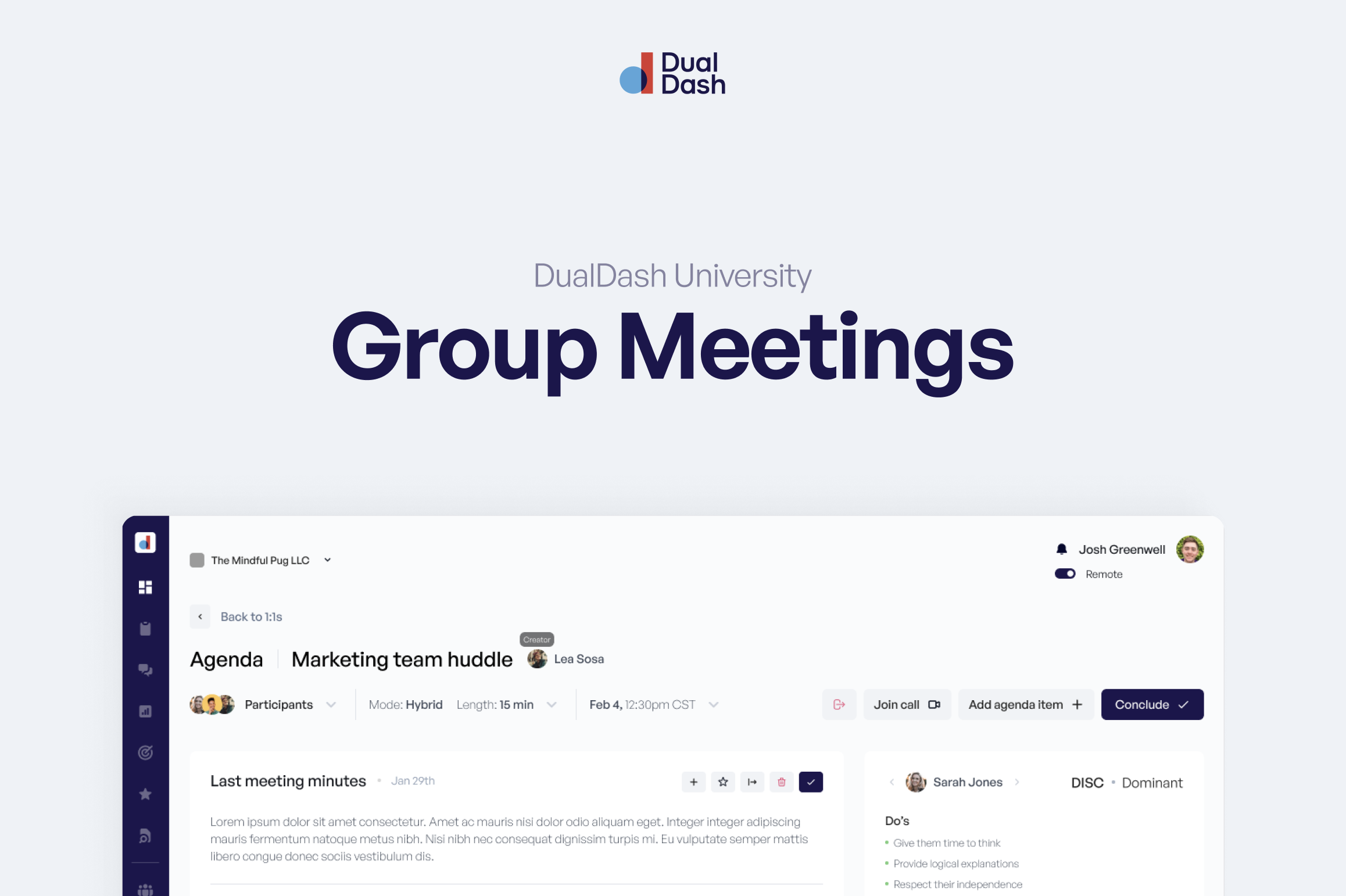
Create and Run a Group Meeting
Group Meetings in Dual Dash are designed to help teams collaborate, make decisions, and turn conversations into action—all in one place.
Instead of starting with a blank document, everything is built around Agenda Topic Cards, so your meeting stays structured, actionable, and easy to follow.
Create a Group Meeting
Start by setting up your meeting.
Add a Meeting Title
Choose a clear, recognizable name.
Examples:
- Leadership Team Weekly
- Service Department Standup
- Executive Board Meeting
Your title should make it easy for people to find and understand the purpose of the meeting.
Add Recurring Members
Select the people who will consistently attend this meeting.
Recurring members:
- Automatically appear on each meeting
- Receive notifications and updates
- Can collaborate on the agenda ahead of time
- Can participate in discussion and voting
You can always add or remove attendees for a specific meeting if needed.
Build Your Agenda
Group Meetings are powered by Agenda Topic Cards.
Each card represents one topic and keeps everything organized in a consistent format.
Add a Topic Card
For each topic:
- Give it a clear title
- Select a type:
- Discussion – explore ideas or review updates
- Decision – make a call and optionally vote
- Feedback – gather input from the group
Collaborate Before the Meeting
Anyone with access can:
- Add new topics
- Comment on topics
- Prepare notes ahead of time
This ensures your meeting starts with context—not confusion.
Run the Meeting
During the meeting, work directly inside each Agenda Topic Card.
Capture the Conversation
Each card includes a Summary section where you capture:
- What was discussed
- Key points or insights
- What matters moving forward
This becomes the official record of the meeting.
Make Decisions
For Decision-type topics:
- Record the decision clearly
- Launch a live vote if needed
- Automatically capture results (Yes / No / Abstain)
Gather Feedback
For Feedback topics:
- Collect input from the group
- Capture patterns or key themes in the summary
Turn Conversations into Action
From any topic, you can:
- Create Goals
- Add Tasks
- Assign owners
- Set due dates
These actions connect directly to your system:
- Appear on the Dashboard
- Show up in 1:1s
- Roll into Performance Reviews
Generate Meeting Minutes
Dual Dash builds your minutes from what actually happened in the meeting.
No blank documents. No rewriting everything after.
How it works
Each Agenda Topic Card contributes to the minutes:
- Topic title
- Type
- Summary
- Decisions and vote results
- Action items
Generate Minutes
Click Generate Minutes to compile everything into a structured record.
Your minutes will include:
- Meeting title and date
- Attendees
- Each topic with its summary and outcomes
- Decisions and votes
- Action items
Finalize Minutes
Once everything is accurate:
- Finalize the minutes to lock the record
- Share with your team
- Reference them in future meetings
Review Previous Minutes
Each new meeting includes a reference to the last one.
You can:
- View prior finalized minutes
- Approve or request revisions
- Carry forward unresolved items
This keeps your team aligned from meeting to meeting.
Best Practices
- Prepare ahead of time
Add and review agenda topics before the meeting starts - Keep summaries simple and clear
Focus on what matters, not every word said - Use topic types intentionally
This keeps discussions, decisions, and feedback organized - Create action items in the moment
Don’t rely on memory later - Finalize your minutes promptly
Lock in clarity while it’s fresh
The Big Idea
Most tools make you write minutes after the meeting.
Dual Dash builds them as you go.
Your meetings stay focused.
Your decisions are clear.
And your team leaves with real action—not just notes.
