
Keeping your data accurate
Some KPIs update automatically.
Others require manual entry.
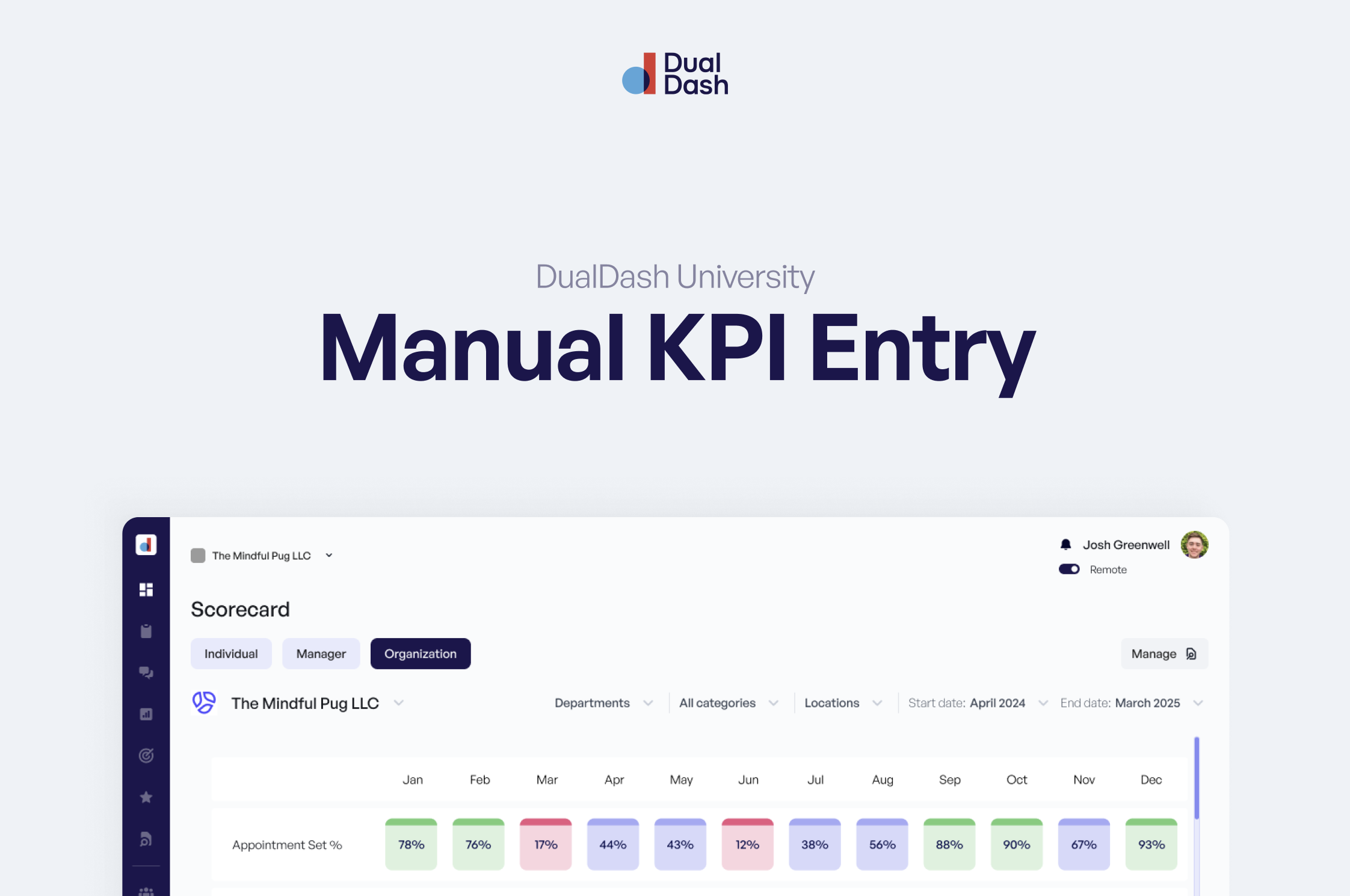
Manual KPI Entry ensures your Scorecards reflect the most current and accurate performance.
When to use manual entry
Use manual entry when:
- Data is not connected through an integration
- Results are tracked offline or in another system
- Updates are provided on a regular cadence
This keeps all performance data in one place.
Entering KPI values
To manually update a KPI:
- Go to Scorecards
- Navigate to the correct Scorecard
- Locate the KPI in the bottom table
- Enter the Actual value for the current period
- Save or confirm the update
Once entered, the Scorecard will immediately reflect the updated result.
Understanding null vs 0
It is important to enter values correctly.
- Null (no value) means no data has been entered yet
- 0 means the actual result is zero
If a KPI does not have data:
- Leave the slider off
- Do not enter a value
Only enter 0 if the result is truly zero.
This ensures reporting and totals remain accurate.
How benchmarks appear
As you enter values, benchmarks are color coded:
- Does Not Meet
- Meets
- Exceeds
This helps you quickly understand how the result compares to expectations.
Following update frequency
Each KPI has an update frequency:
- Daily
- Weekly
- Monthly
- Quarterly
- Annually
Make sure you are updating KPIs at the correct interval to keep data consistent.
The bottom line
Accurate data leads to better decisions.
Manual KPI Entry ensures your Scorecards stay current, reliable, and useful.
