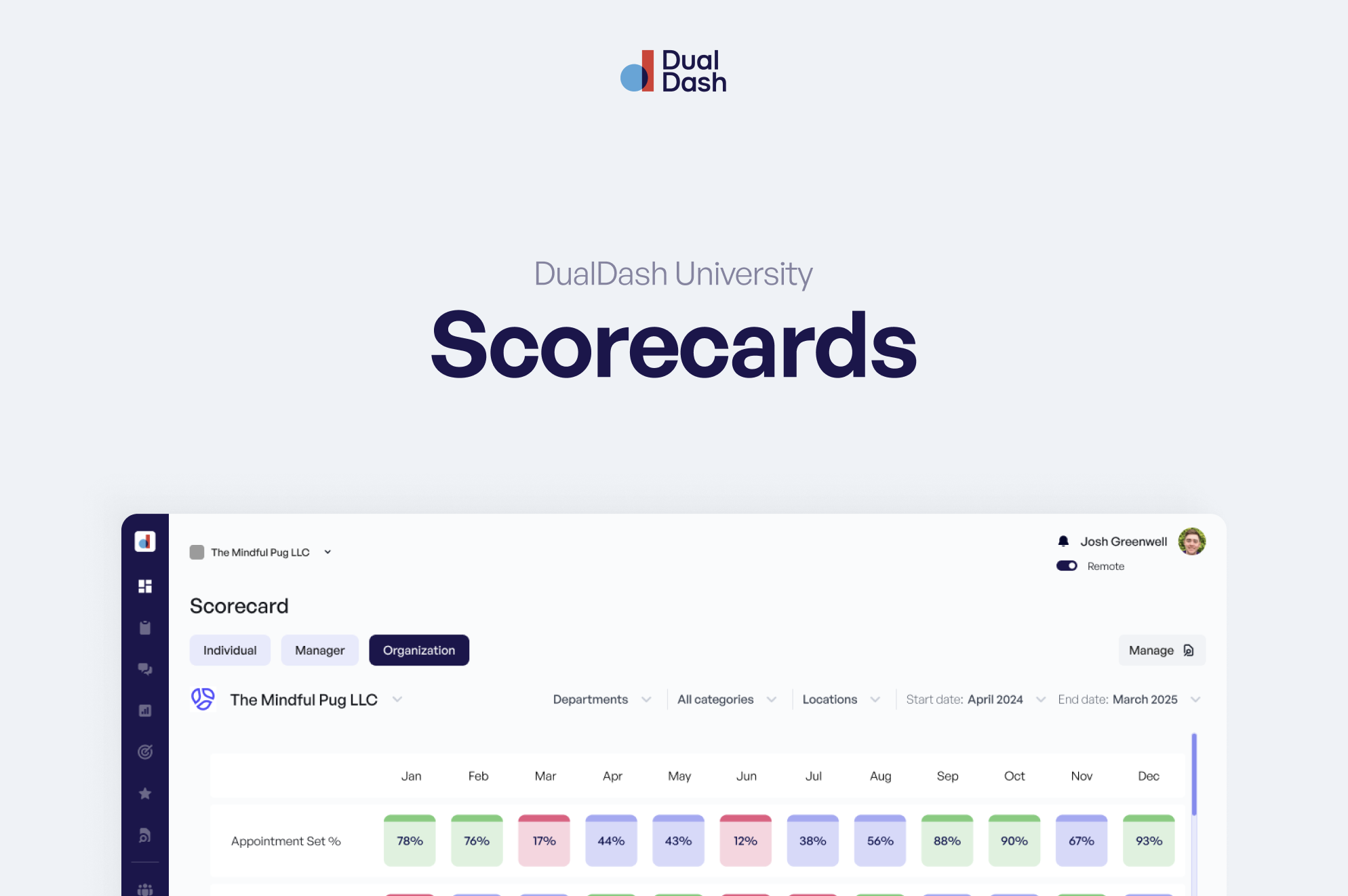

Using Scorecards
Scorecards help you track performance and understand where to focus.
In this guide, you’ll learn how to read a Scorecard, update data, and use it to prepare for conversations.
Start with the Strike Zone
At the top of the Scorecard is the Strike Zone.
This is your quick snapshot of performance.
It shows KPI totals for the current period:
- Monthly
- Quarterly
- Annually
Each KPI is color-coded so you can quickly see where things stand.
Start here to understand what needs attention before diving deeper.
Review Your KPIs
Below the Strike Zone, you’ll see your full list of KPIs.
Each KPI includes:
- A name
- A benchmark range (Fails, Meets, Exceeds)
- A visual indicator of performance
Use this section to identify:
- Which KPIs are performing well
- Which ones need attention
View Trends Over Time
Click on a KPI to update the chart below.
This shows how performance has changed over time.
You can also adjust the date range to expand or narrow your view.
Use this to understand patterns, not just one-time results.
Update Actuals
At the bottom of the Scorecard is the Actuals table.
This is where performance data is recorded.
If your KPI is manually tracked:
- Enter the value for the correct date
- Save your update
When entering data:
- Use 0 if the work happened but produced no result
- Leave it blank (null) if no data has been entered
This helps keep your data accurate.
Understand “In Progress” Periods
If you see a stripe at the top of the Scorecard, the current period is still in progress.
This means not all data has been recorded yet.
Use this as a reminder not to overreact to incomplete numbers.
Add Context with Annotations
If a KPI changes or needs explanation, you can add an annotation.
Use annotations to capture:
- What changed
- Why performance moved
- Anything worth discussing
This keeps the number connected to the story behind it.
Bring KPIs Into Your 1:1
From the annotation tool, you can add a KPI directly to an upcoming meeting.
This helps you:
- Prepare for your 1:1
- Focus the conversation
- Address what matters most
Instead of guessing what to talk about, you bring the data with you.
Recognize Strong Performance
Managers can send STARS directly from the Scorecard.
If a KPI reflects strong performance, recognize it in the moment.
Recognition doesn’t need to wait.
Use Scorecards to Prepare for Conversations
Before your next 1:1:
- Review your Strike Zone
- Look for any red or declining KPIs
- Add notes where context is needed
- Add key KPIs to your agenda
This keeps meetings focused and productive.
What’s Next
Now that you know how to use Scorecards,
learn how to turn those insights into action with Work Plans.